- Agendas Create agendas linked to a meeting or topic and manage their status.
- Action items Record decisions with a description, owner, and due date.
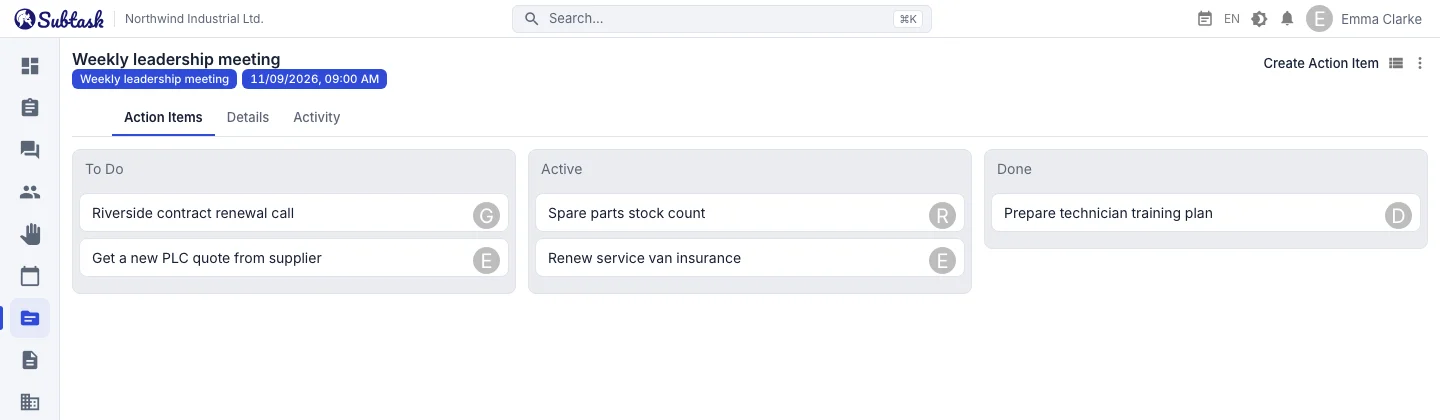
- Action board Drag and drop between To do → Active → Completed columns.
- Calendar connection Create an agenda from a calendar meeting; see deadlines in the calendar.
Agendas: a record of meetings and topics
An agenda (topic) is a record of a meeting or a subject that spans several meetings, such as “Weekly sales meeting,” “New branch opening,” or “ISO audit preparation.” Create an agenda with a name and set its status to inactive, active, or completed. Action items are added to active agendas; completed agendas remain as an archive.
The agenda list shows each agenda’s name, status, and linked meeting title. Agenda details include tabs for action items, agenda information, and activity history, along with the linked meeting’s title, date, and time.
Create an agenda from a calendar meeting
After scheduling a meeting in the calendar, create an agenda from it with one click. The agenda carries the meeting’s title and link. Previously linked agendas are listed, making it easy to return to the previous week’s agenda when you hold weekly meetings.
Action items: who does what, and by when?
Create an action item for each decision made in a meeting:
- Description: the work to be done
- Assignee: the person responsible
- Due date and time (optional)
The person who created the action item, its linked agenda, and its creation date are recorded automatically. Action items move through to do, active, and completed statuses.
Table or board
View action items in a table showing description, status, due date, and assignee, or on a drag-and-drop board with status columns. Dragging a card to the next column updates its status. Open the board in the first five minutes of your next meeting to review the previous week’s action items.
Everyone sees their own action items
Each user has a separate list of action items assigned to them, and the home dashboard also has an action item widget. Items with due dates appear in the calendar’s action item layer; clicking a record opens its details. Permission settings control whether a user sees all action items or only those relevant to them.
Action item or task?
Meeting decisions are often brief and assigned to one person: “Get a new quote from the supplier” or “Send the draft contract to legal.” An action item is enough for these. If a decision involves work with multiple people, subtasks, and an estimate, create a task in a workspace in issue tracking. Both approaches work side by side in the same calendar, with the same team.
Quick notes
You don't need a separate notes app for the small things that come up outside meetings. The Quick notes panel opens with one click from any screen; type a note and save it. Notes are private to you and nobody else can see them. The most recently updated note stays on top, and the counter on the button shows how many notes you have.
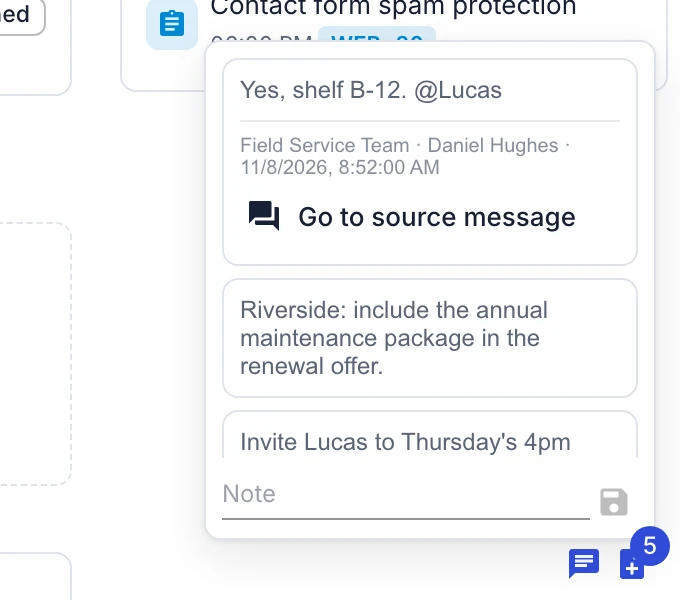
Turn an important chat message into a note with one click. The note keeps the conversation name, sender and message date, and Go to source message takes you back to the original. On desktop the notes panel opens as a popover; on phones it opens full screen.
Example: a weekly management meeting
- Create a meeting in the calendar for each Monday and add managers as participants.
- Open a “Weekly management” agenda from the meeting.
- During the meeting, enter decisions as action items and assign each an owner and date.
- At the next meeting, open the action board, close completed items, and discuss overdue ones.
To take notes outside meetings, use personal quick notes, accessible from every screen in the app. You can also turn an important chat message into a note with one click.
Frequently asked questions
Is meeting management free?
Can I keep meeting minutes?
Do I get a reminder when an action item is due soon?
Does it create Zoom, Google Meet, or Teams meetings?
Bring your team together in one place
Get started with Subtask for free, invite your team and create your first task in minutes. The price does not change with your user count.
Create a free account