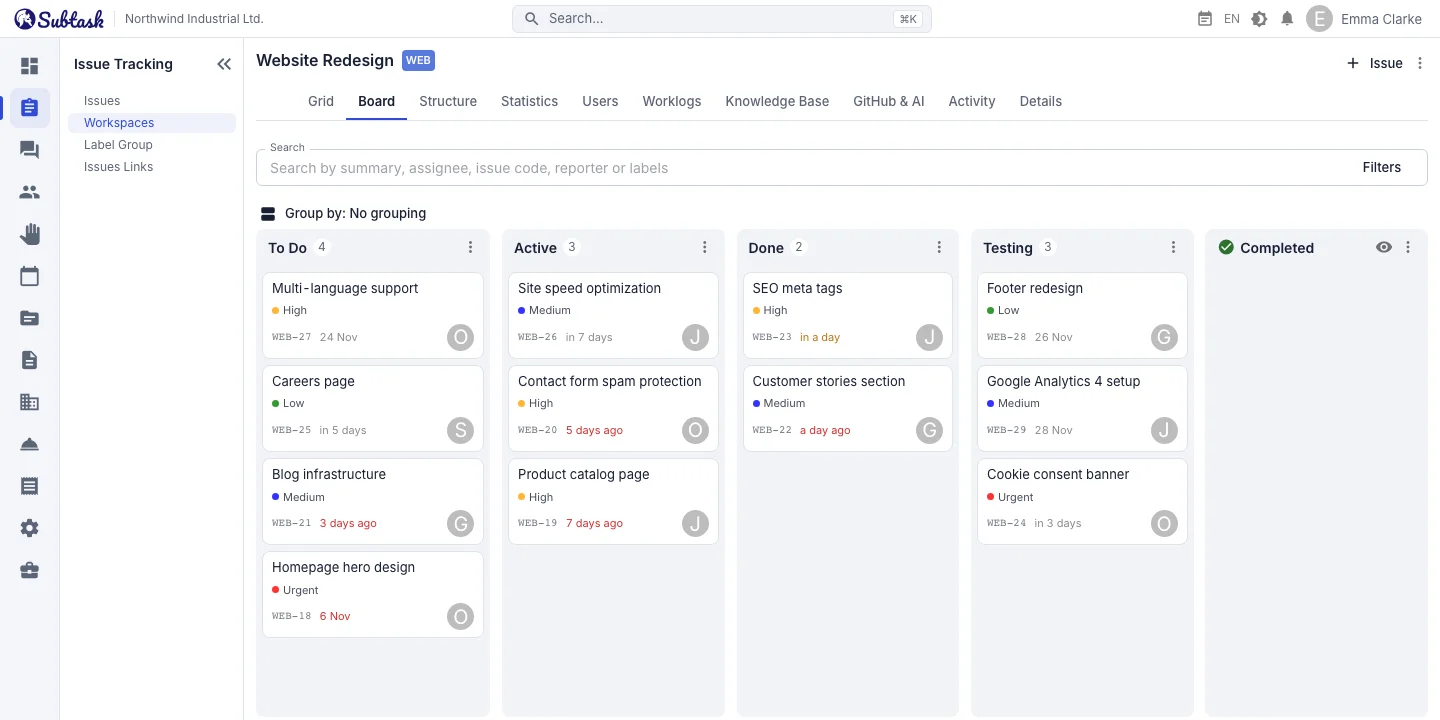
- Drag and drop Move a card to the next column to save its new status.
- Swimlanes Divide the board into rows by a field such as Team, Customer or Priority.
- Bulk actions Select multiple cards and change their status in one go.
- Live updates A card moved by a teammate moves on your screen too.
How does the kanban board work?
Each column on the board represents a task status, such as To do, In progress, In testing and Done. Each card is a task and shows information such as its key, summary, assignee and priority. As work progresses, drag the card to the column on the right; you do not need to open a form or select a status separately.
Everyone with the board open sees the change without refreshing. In the morning meeting, you can look straight at the board instead of asking 'where does this task stand?'.
Swimlanes: divide your board into rows
Dozens of cards can become hard to follow on a large board. In Subtask, you can divide the board into swimlanes by a single-select custom field:
- Team swimlanes: separate rows for Frontend, Backend and Design tasks.
- Customer swimlanes: each customer's tasks in their own row for agencies.
- Priority swimlanes: urgent work at the top, where it stays visible.
Dragging between swimlanes changes the task's status; its swimlane is determined by its custom field value.
Bulk status changes and deletion
Moving dozens of cards one by one at the end of a sprint or during a cleanup takes time. Select multiple cards on the board to change their statuses in bulk or delete tasks you have permission to delete. Cards that cannot be processed because of permissions or another reason stay selected, so you can easily see what was not done.
Define your own workflow
Kanban works well when the columns reflect your actual process. In workspaces that do not use sprints or a timeline, you add your own statuses. A few examples:
| Team | Example columns |
|---|---|
| Software | Backlog → In development → Code review → Testing → Live |
| Content / agency | Idea → Writing → Awaiting customer approval → Published |
| Purchasing | Request → Gathering quotes → Approval → Ordered → Received |
| HR recruitment | Application → Screening → Interview → Offer → Started |
Board, table and list views of the same data
The board is part of Subtask's issue tracking. A card on the board is the task in issue tracking, complete with comments, checklist, worklogs and attachments. Filters work on the board too; a board showing 'only tasks assigned to me' or 'only Customer X tasks' takes a few clicks. When you need to scan in detail, switch to table view and open a card's details in the side drawer.
Kanban or Scrum?
Kanban is enough for teams managing a continuous flow of incoming work. For teams that organize work into two-week periods and estimate with story points, Subtask also offers sprint planning; sprint-model workspaces also let you track tasks on a board. For date-driven projects, see the Gantt timeline.
Frequently asked questions
Is the Subtask kanban board free?
Can I migrate my Trello boards to Subtask?
Can I divide the board by person?
What changes when I move a card between swimlanes?
Are there WIP (work in progress) limits?
Bring your team together in one place
Get started with Subtask for free, invite your team and create your first task in minutes. The price does not change with your user count.
Create a free account