- Customers and machines Customer, contact, project number, machine code and serial number.
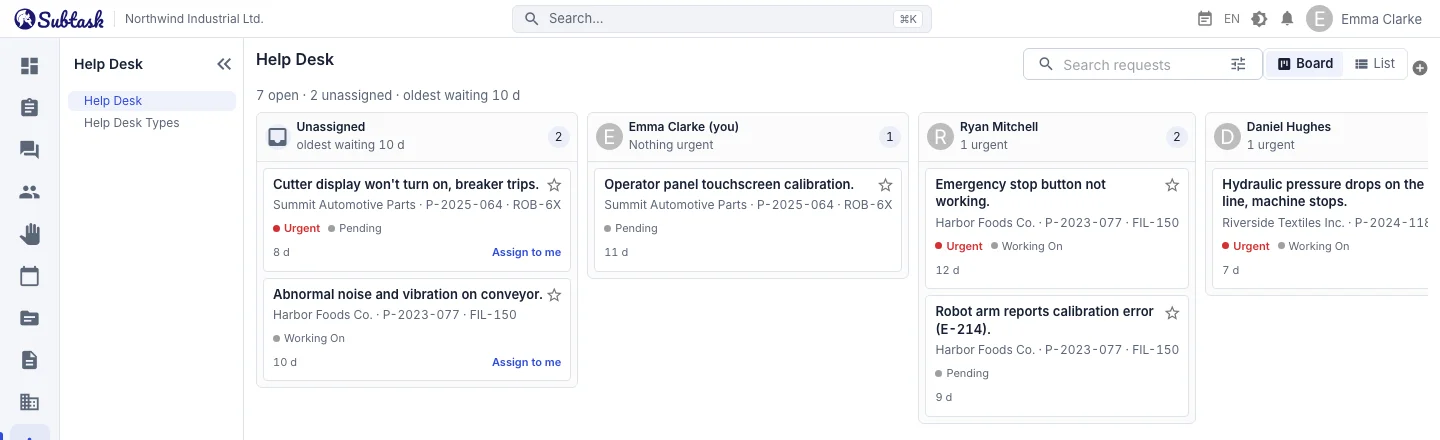
- Dispatch board Unassigned tickets and columns for each person; drag to assign.
- External customer form Let customers report faults without signing in.
- PDF service report Reports with the customer's logo, photos and activity history.
Create a ticket with the details you need
Enter a category and request text for a new ticket. Add these details if needed:
- Customer, machine and contact: type a project number or machine code to quickly select the customer and machine; select an existing contact or enter a new one and save it to the customer.
- Watchers: people who need updates on the ticket, up to 50.
- Attachments: photos, videos and PDFs.
- Urgent flag: urgent tickets stand out in lists and on the board.
- Opening date: if you are entering a fault reported by phone yesterday, you can record the actual opening time.
You can assign the ticket to yourself when creating it. If the category has a default assignee, the ticket is assigned to that person.
Statuses, assignment and resolution records
Tickets move through Pending, In Progress, Completed and Rejected statuses. A resolution is required when completing or rejecting a ticket, so there is no question about what was done. When a ticket is reopened, its previous resolution remains in the timeline.
A technician assigns an unassigned ticket to themselves with one click (Assign to me). The assignee or a manager can return it to the unassigned queue by providing a reason. The assignee and assignment time appear in the ticket details.
Timeline and notes
Ticket details show creation, status changes, assignments, releases and urgent flag changes in order, with dates and people. Internal team notes appear in the same timeline. You can read a ticket's history without having to ask anyone.
Dispatch board: assign work to the right person
The dispatch board has an unassigned column and a column for each team member. Only open tickets are shown, with urgent tickets first, followed by those waiting longest. The top of the board shows open and unassigned ticket counts and how long the oldest ticket has been waiting.
- A technician picks up a ticket by dragging an unassigned card into their own column or using Assign to me on the card.
- They can return their own card to the unassigned column by providing a reason.
- A manager assigns tickets by moving cards between people.
Click a card to open its details in a side drawer. The list and board update live: when a ticket is assigned to someone else, it moves on your screen too.
Customer, contact and machine records
Record the companies you serve with their name, country and logo. Keep multiple contacts for each customer, with name, job title, email and phone, plus machine/project records with project number, machine code, serial number and description. You can link a machine to the relevant workspace. When a ticket needs engineering or software work, create an issue in that workspace with one click; its key and status appear on the ticket. Archive customers you no longer work with without losing their ticket history.
Customers are a separate module in the menu: the customer page brings together that customer's tickets, the issues of their linked projects and the time spent. You can also select a customer in the help desk's customer panel to see only their tickets. It is designed for companies that track which faults affect which machines, such as machine manufacturers, industrial automation companies, medical equipment service providers and air conditioning or elevator service teams.
External customer fault report form
Create a dedicated fault reporting link for each customer and send it to them. Customers complete the form without creating a Subtask account or signing in: machine, short title, description, name, job title, email and phone. They can also attach photos and files. The form displays your company name and the customer's name and logo.
The submission enters your queue as a Pending ticket linked to the customer. The selected category's default assignee is assigned and notified. The customer sees a reference number on screen. You can regenerate or disable the link at any time; links for archived customers do not work.
PDF service reports with the customer's logo
Download a PDF service report from the ticket details with one click. It includes customer and company information, machine/project and serial number, contact, category, status, opening date, creator and assignee, description, resolution, activity and notes. Up to six JPEG/PNG photos are included; file names are listed for other attachments. Labels are in Turkish or English, and dates use your company's time zone.
Search and filters
The search box in the header filters the board and the list as you type: request text, contact, customer and machine. Use quick filters for urgent, unassigned, personally relevant tickets and tickets added to your personal list; optionally include closed tickets. Advanced search also looks inside notes and closed tickets, combining text, customer or internal request, category, assignee or unassigned, date range, status and urgent filters, with the matching words highlighted in results. The table view includes category, customer, machine, creator, assignee, status and date columns. By default, urgent tickets come first, followed by the newest tickets.
Attachments: photos, videos and PDFs
You can attach JPEG, PNG, GIF and WebP photos, MP4, MOV and WebM videos, and PDF files to tickets. Images and PDFs have a 10 MB limit, videos a 50 MB limit, and each ticket supports up to 30 attachments. A video of a fault helps technicians understand the problem before visiting the site.
Notifications and permissions
Notifications are generated for assignments, status changes, new notes, self-assignment or release, urgent flags and tickets submitted through external forms. They go to the ticket creator, assignee and watchers; the person performing the action does not receive their own notification. Notifications arrive live in the app, by email for offline users and as push notifications in the Android app.
Permission to view and manage all tickets is granted through roles. Other users see tickets they created, are assigned to or watch. Category and customer management requires a separate permission.
Categories and default assignees
Define ticket categories such as Electrical Fault, Software Update, IT Hardware or Building Maintenance with a name, description, department and default assignee. Linking a category to a department limits assignee choices to members of that department. A category in use cannot be deleted, but it can be deactivated.
Frequently asked questions
Do my customers need a Subtask account?
How do I send a service report to a customer?
Can it be used as an internal IT help desk?
Are there SLAs and priority levels?
Are incoming emails turned into tickets automatically?
Is the help desk paid?
Bring your team together in one place
Get started with Subtask for free, invite your team and create your first task in minutes. The price does not change with your user count.
Create a free account