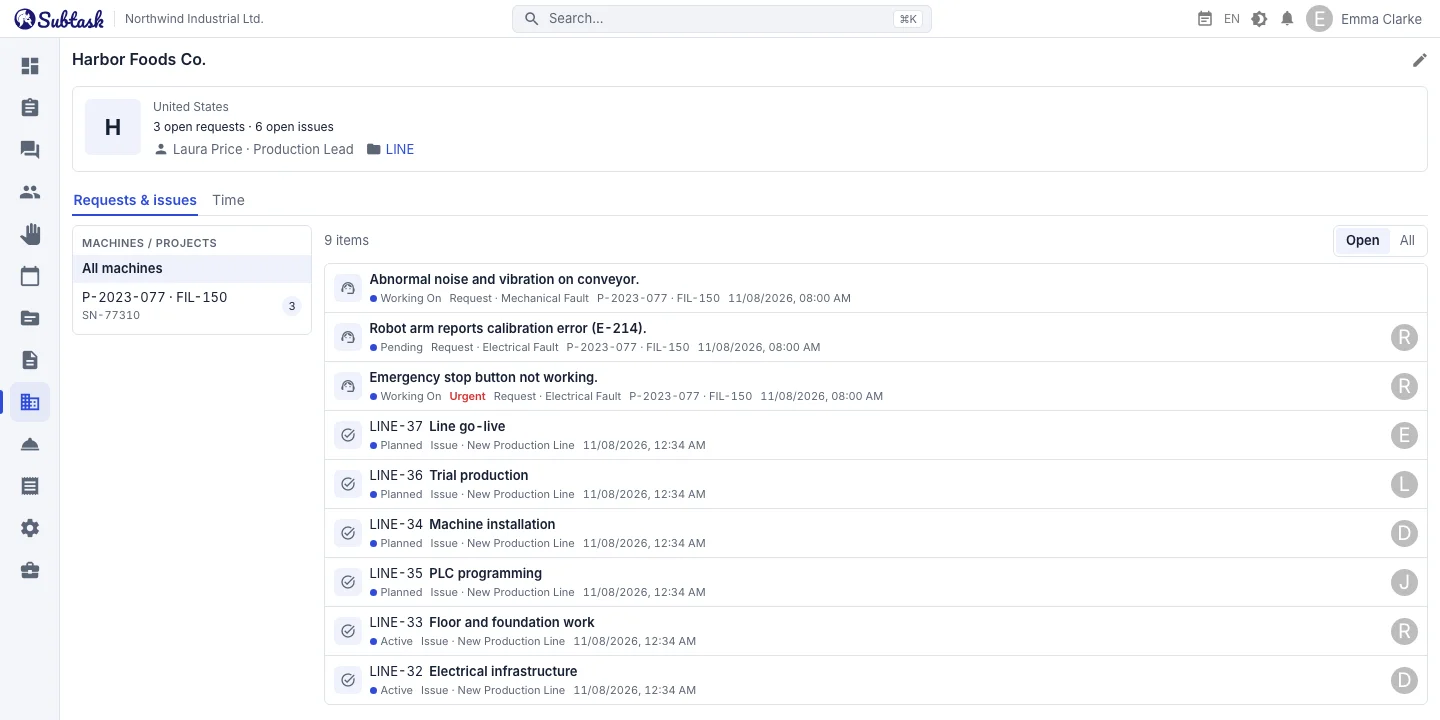
- Customer record Company, country, logo, contacts, machines and serial numbers.
- Linked projects Link a project to a customer; its issues show the customer name.
- Tickets and issues Support tickets and project issues in one list, filtered by machine.
- Time spent Hours per customer by project, person and issue, with CSV export.
Customer records: company, contacts and machines
Record the companies you serve or run projects for with their name, country and logo. Keep multiple contacts for each customer, with name, job title, email and phone. Add machine or project records with project number, machine code, serial number and description, and link a machine to the relevant workspace.
The customer list shows each company's country, contacts and linked projects. Archive customers you no longer work with; their tickets and issues are kept, and you can restore them at any time.
Link projects to customers
Choose the customer when you create or edit a project (workspace). The customer name appears in the project header and on every issue in that project, so nobody has to ask who the work is for. A customer can have several projects. Archived customers cannot be linked to new projects.
Customer page: tickets and issues together
Open a customer to see their country, open ticket and open issue counts, contact and linked projects at the top. Below, the customer's help desk tickets and the issues of their linked projects appear in one list: open work first, then the most recently updated. Each row shows the status, whether it is a ticket or an issue, the category or project, the machine and the assignee; click a row to open it.
Pick a machine from the list on the left to see only that machine's history, so "which faults and which jobs have there been on this machine?" takes one click. Switch between Open and All to include closed records.
Time spent per customer
The Time tab on the customer page adds up the work logs entered on the customer's issues: those in its linked projects and those opened from its tickets. Choose this month, last month, the last 30 days or this year to see the total time, the number of entries and people, and a breakdown by project, person and issue. Download the details as a CSV with date, person, issue, title, project and hours columns for invoicing or your monthly report.
Time comes from the work logs on issues, so you don't need a separate timesheet.
Works with the help desk and the external fault form
When you open a help desk ticket, you choose the customer, machine and contact; typing a project number or machine code finds the customer quickly. With the fault reporting link you create for each customer, they can submit a ticket without signing in, and it lands in your queue already linked to that customer. When a ticket needs engineering work, create an issue in the customer's project straight from the ticket, so the ticket and the work meet on the same customer page.
Who sees what?
Adding, editing and archiving customers uses the same permission as managing help desk categories, granted through roles. On the customer page, tickets follow the help desk's read rules: people without permission to see all tickets only see the ones they opened, are assigned to or watch. Time spent is only counted from projects you are a member of. An issue opened from a ticket you can see but in a project you are not a member of still appears in the list, with its title, assignee and project name hidden, and cannot be opened.
Frequently asked questions
Is customer management a CRM?
Is customer management a paid feature?
Can my customers sign in to Subtask?
How do I report time spent on a customer?
Can I import my customer list?
Bring your team together in one place
Get started with Subtask for free, invite your team and create your first task in minutes. The price does not change with your user count.
Create a free account