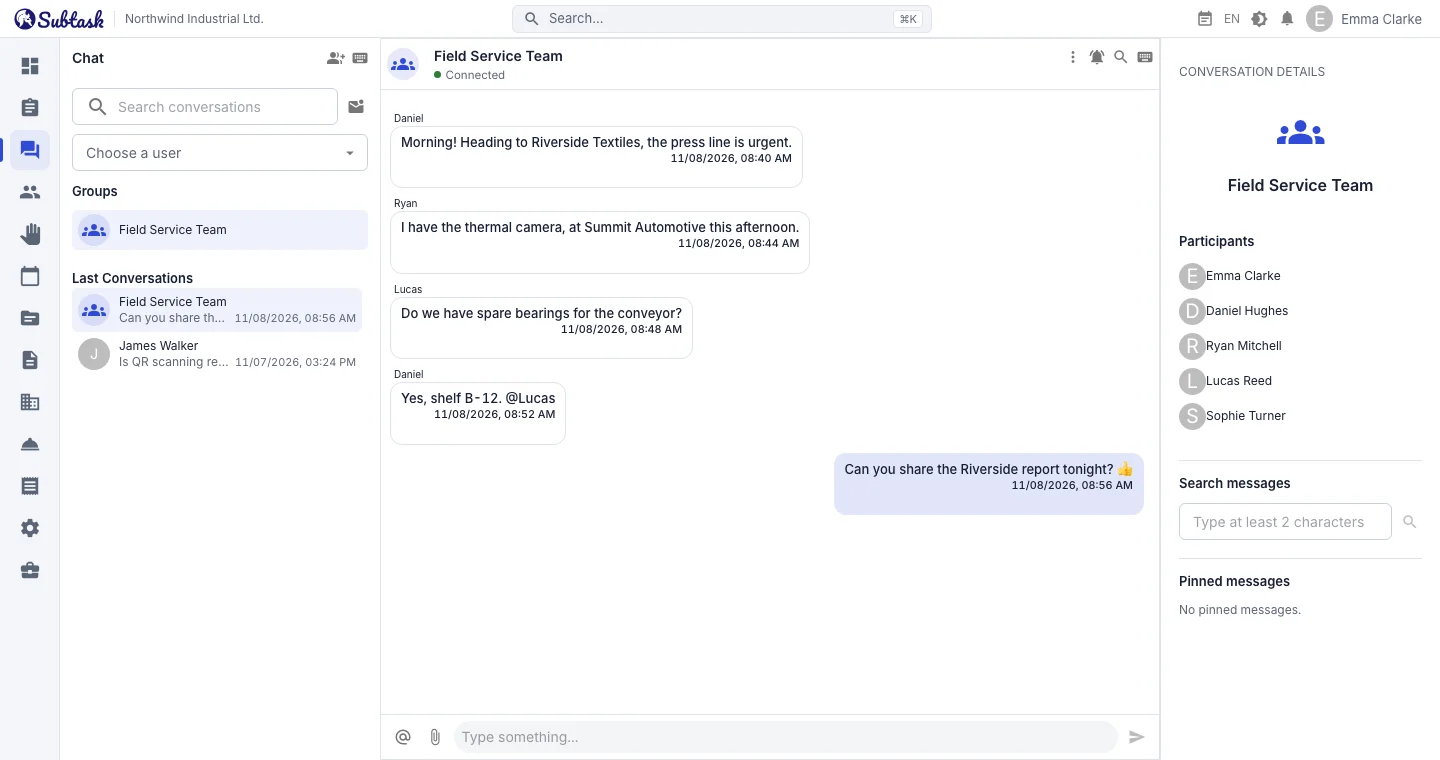
- Group chats Create groups for a team, project, or branch and manage their members.
- @mentions Mention someone in a group to send them a notification.
- File sharing Send files by dragging and dropping or pasting from the clipboard.
- Read receipts See whether a message has been read and how many group members have read it.
One-to-one and group chat
Message anyone in your company directly, or create a group chat by giving it a name and selecting members. The group creator can add and remove members and delete the group; members can leave at any time. Anyone who leaves a group retains access to messages sent up to the date they left.
Direct messages are only available between people in the same company. Chat is not a messaging network open to people outside your company.
Details that make everyday conversations easier
- Reply: reply to a specific message with a preview of the original message.
- Edit and delete: correct or delete your own message; the message indicates the change.
- Reactions: respond quickly with 👍 ❤️ 🎉 😂 😮 😢.
- Pin: pin important messages and view a list of pinned messages in the conversation.
- Search: search for text within a conversation and click a result to jump to the message.
- Typing and online indicators: see who is online and who is typing in the conversation.
- Drafts: unfinished messages stay in place when you return to the conversation.
- Keyboard shortcuts: send messages, add a new line, edit your last message, and search.
Share files and images
You can send files by selecting them, dragging and dropping, or pasting from the clipboard. Each message can have up to five attachments; JPEG, PNG, GIF, and WebP images appear within the message, while other files are listed by name and size. Only people with access to the conversation can access its files.
Notifications and muting
Direct messages notify the recipient; group messages notify the people mentioned. Notifications arrive in the app, as browser notifications, and as push notifications in the Android app. You can mute a busy group for 1 hour, 8 hours, 1 week, or indefinitely; muted conversations do not generate notifications.
From messages to notes, from conversations to tasks
Save a message as a quick note with one click to keep useful information from getting lost. The note retains the source conversation’s name, the sender, and the message date; you can return to the original message from the note. Quick notes are private to you and live in a panel accessible from every screen in the app.
Once a task discussed in chat is clear, create it in issue tracking with an owner and a due date. If it needs a meeting, select participants and create a meeting in the calendar.
Company announcements
Information everyone needs should not get lost in the chat stream. People with announcement permissions can publish company announcements with a title and rich text content. Announcements appear in date order alongside other notifications in the app’s notification menu and can be read with one click; the menu is also available on mobile.
Use announcements for holidays, new working hours, office moves, new team members, and HR policy changes. For lasting reference documents such as procedures and handbooks, use the knowledge base.
Why use Subtask instead of a separate messaging app?
- One user directory: new team members access chat, tasks, and the calendar with the same account; close a departing employee’s account in one place.
- No per-user charge: there is no separate seat fee for chat.
- Company data stays with the company: conversations are not tied to personal phone numbers.
Frequently asked questions
Is Subtask chat free?
Can I message someone outside my company?
Are voice or video calls available?
Can I receive notifications on mobile?
Are old messages deleted when I leave a group?
Bring your team together in one place
Get started with Subtask for free, invite your team and create your first task in minutes. The price does not change with your user count.
Create a free account