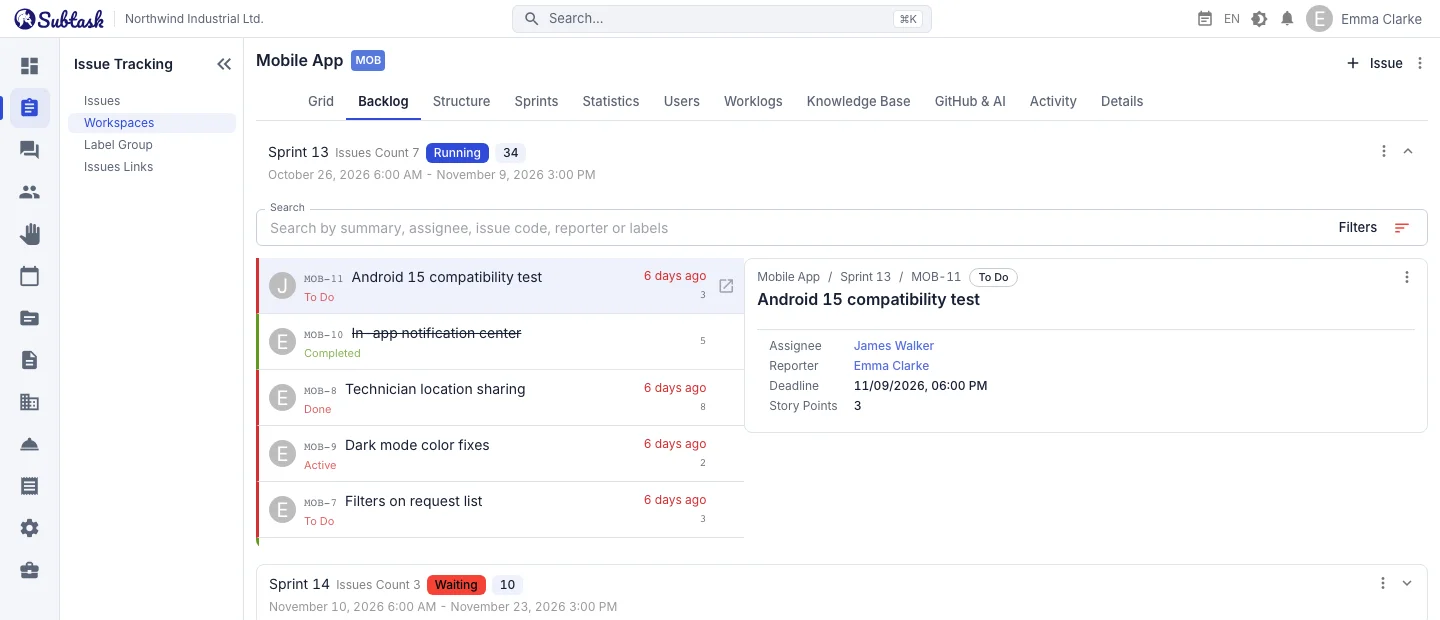
- Backlog Tasks not yet assigned to a sprint wait in a separate list.
- Story points See the total story points per sprint as you plan.
- Burndown Track remaining work day by day on a chart.
- Sprint report Planned, completed and carried-over tasks, plus the completion rate.
Create a workspace with a sprint model
When creating a workspace, choose a work model that supports sprints. The backlog, sprints and sprint reports are automatically enabled, and a sprint selector appears on task forms. A software team using sprints and an operations team using simple kanban can work side by side in the same company.
From backlog to sprint
The workspace's main view lists the backlog and planned, active and completed sprints in separate sections. Each section shows the task count and total story points, so you can see immediately whether you are exceeding the team's capacity as you fill the sprint.
- Create a sprint with a name, start date and end date.
- Move backlog tasks into the sprint; enter estimates in story points.
- Start the sprint. Move tasks forward on the board or in the list during the sprint.
- When the sprint ends, decide what to do with unfinished tasks: return them to the backlog or mark them as completed.
Burndown chart and sprint report
Every sprint's report tab includes a burndown chart. Chart data is calculated automatically each day; see day by day whether the team is ahead of or behind the sprint goal.
The sprint summary includes:
- Number of planned, completed and carried-over tasks for the next sprint
- Planned, completed and carried-over story points
- Completion rate
Below the report is a list of tasks completed in the sprint; you can open this screen directly in your sprint review (retrospective) meeting.
Story points, time estimates and worklogs
Tasks have both story point and time estimate fields; fill in whichever your team uses. Record actual time spent with worklogs. This gives you data to answer 'how much did our estimates differ from the time we spent?'.
Sprint meetings in Subtask
Create meetings in the calendar for sprint planning, daily meetings and retrospectives, and add participants. Open an agenda from the meeting and turn decisions into action items with owners and due dates. Improvements identified in the retrospective stay visible for the next sprint.
For development teams: GitHub and AI
When you connect a GitHub repository to a workspace, PRs and commits containing the task key appear in task details. You can also send a task to an AI agent using Solve with AI, then review and merge the resulting PR. When the PR is merged, the task automatically moves to the status you selected.
Frequently asked questions
Can Subtask be used as a free Scrum tool?
What happens to unfinished tasks when a sprint ends?
How is the burndown chart calculated?
Can I migrate my sprint and story point data from Jira?
Are email notifications sent when a sprint starts?
Bring your team together in one place
Get started with Subtask for free, invite your team and create your first task in minutes. The price does not change with your user count.
Create a free account