- Three views View the same tasks in a table, list or drag-and-drop board.
- Flexible filters Filter by assignee, status, date range, story points and custom fields.
- Parent tasks and subtasks Organize tasks in a tree and connect them with relationship types.
- Unlimited users Invite your entire team; there are no per-user fees.
The essential fields for issue tracking
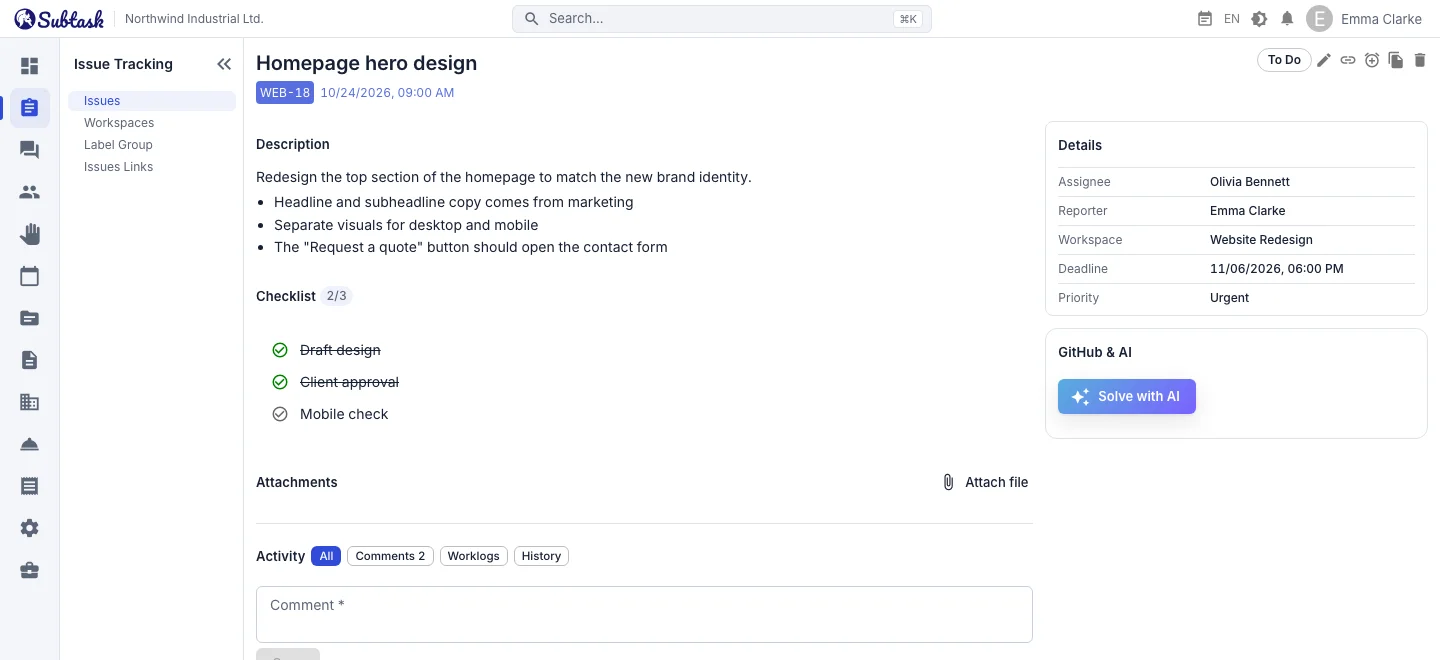
Every task starts with a summary and a rich-text description. Alongside these, you enter its workspace, assignee, due date, time estimate and story points. The creator is automatically recorded as the reporter; assigning a task to yourself takes one click on 'Assign to me'.
Each task receives a key generated from the workspace's short name (e.g. WEB-128). This key lets you refer to the task unambiguously in conversations, commit messages and PR titles.
Break tasks into smaller steps with checklists
Add the steps within a task as checklist items. Completed items appear crossed out, and the task details show how many items are complete. Small steps that do not warrant a separate task stay visible.
Custom fields: Priority, Team, Customer…
Use custom fields to create your team's own categories. For example, add Low / Medium / High / Urgent values to a 'Priority' field and customer names to a 'Customer' field. Fields can allow single or multiple selections, and you can assign colors to values. Use a field across the company or only in one workspace. Custom fields serve a practical purpose: they are available in filters and can be selected to divide the kanban board into swimlanes.
Table, list and board: different views of the same tasks
- Table view: Scan large numbers of tasks with pagination, column filters and grouping. Clicking a row opens the task in a side drawer without leaving the page.
- List view: Read tasks in a simpler layout and make quick updates.
- Board view: Drag cards between status columns to show progress. Select multiple cards to change their statuses in bulk.
When someone changes a task's status, open screens update immediately; you can see what the team is doing without refreshing the page.
Search, filter and sort
Search summary text; narrow results by workspace, assignee, reporter, status, custom field values, due date range, creation date range and story points. Sort the list by summary, due date, status, assignee, reporter, story points, update date or creation date.
Typical examples:
- 'Tasks assigned to me that are due this week'
- 'Tasks whose Customer field is Company X and that are still open'
- 'High-priority tasks created in the last 30 days'
Workspaces and templates
Tasks are grouped in workspaces: create a separate workspace for a project, team or customer. When creating a workspace, choose a work model; this determines whether backlog, board, sprint, timeline and dependency features are enabled. A team that needs a simple to-do list and a software team working in two-week sprints can each use the same app in their own way.
In workspaces that do not use sprints or a timeline, you can define your own task statuses (e.g. To do → In design → Awaiting approval → Done). Add or remove workspace users, appoint a workspace administrator and add frequently used workspaces to your favorites.
Workspace statistics
Each workspace's statistics tab contains summary figures, a status breakdown, workload per person and an overdue tasks table. See who has too much work and which tasks have missed their deadlines before the meeting starts.
Connect tasks: parent tasks, subtasks and relationship types
Break a large task into subtasks and view them as a tree in the workspace's structure view. Search the tree and drag a task under another task.
For links beyond parent-child relationships, define relationship types with names for both directions, such as 'blocks / is blocked by' or 'duplicates / is duplicated by'. Links appear in the details of both tasks.
Comments, worklogs and attachments
In the activity section of task details, comments, worklogs and change history can be filtered separately. A worklog records when you started and how much time you spent; the task shows the total time logged. Tasks with worklogs are protected against accidental deletion.
Drag and drop files onto a task: images are previewed, and each file's name, size, uploader and date are listed (5 MB per file, 20 attachments per task).
Instead of writing a similar task from scratch, copy it: the description, assignee, dates, estimate, story points, custom field values and checklist are carried over to the new task.
Notifications and permissions
When you assign a task to someone, they receive an in-app notification; there is also an email flow for task and status changes to the assignee. Team members using the Android app can also receive push notifications.
Role management lets you specify in detail who can view and manage which tasks: reading and managing tasks, reading and managing comments, worklogs, workspace management, custom field management and relationship type management have separate permissions. Workspace access is also restricted by membership and workspace administrator status.
Migrating from another tool
You do not need to re-enter your tasks. The Import tasks wizard in the workspace menu reads Jira CSV, Trello JSON, ClickUp CSV and any CSV/Excel file; it maps columns, statuses and people, and shows a preview before importing. Uploading the same file again does not create duplicates. For step-by-step instructions, see the Jira, Trello and ClickUp guides.
Who is it for?
- Software teams: with sprints, story points, burndown and GitHub integration.
- Agencies and consultancies: with a workspace for each customer and a 'Customer' custom field.
- Operations and office teams: with simple boards and their own statuses.
- Manufacturing and service companies: for teams that want issue tracking, help desk and asset assignment in one place.
Frequently asked questions
Is Subtask issue tracking software free?
How many users can I add?
Can I migrate my tasks from Jira or Trello?
Can I define my own task statuses?
Can I prioritize tasks?
Can I use it on mobile?
Bring your team together in one place
Get started with Subtask for free, invite your team and create your first task in minutes. The price does not change with your user count.
Create a free account