- Leave types Annual, personal, sick, hourly, and more, measured in days or hours.
- Approval workflow Pending, approved, and rejected statuses, with approver selection.
- Overlap checks Overlapping leave and holidays are caught before a record is saved.
- Leave balances Entitled, used, and remaining days or hours by leave type.
Define leave types for your company
Every company has its own leave policy. In Subtask, you create your own leave types. For each type, define:
- Name and description (for example, Annual leave, Personal leave, Birthday leave, Hourly leave)
- Unit: is leave taken in days or hours?
- Entitlement: how many days or hours can be used for this type
- Maximum duration: the maximum number of days or hours that can be taken at once
- Approval requirement: whether this leave type needs an approver
A leave type that has been used cannot be accidentally deleted; the number of linked records is shown. You can deactivate types you no longer use.
Recording leave and managing approvals
The leave form includes the leave type, start, end, and an optional note. Date fields switch to days or hours depending on the leave type. For types requiring approval, select an approver from workspace and department managers. If the selected approver is on leave on those dates, the form warns you.
| Status | When does it apply? |
|---|---|
| Pending approval | Leave with an assigned approver who has not yet made a decision |
| Approved | Leave that has been approved or saved without requiring an approver |
| Rejected | Leave that has not been approved |
Pending leave appears in the approver’s agenda and in the leave layer of the main calendar. Employees submit their own leave requests; each request starts as pending and the selected approver approves or rejects it. Until a decision is made, employees can edit or withdraw their own request. To let HR staff or managers enter leave for others and manage every record, grant full access with role permissions.
Date validation and overlaps
An incorrectly entered leave record can lead to a payroll error. Before saving, Subtask checks:
- That the end date is after the start date and the leave falls within the same year
- That the maximum duration for the leave type is not exceeded
- That hourly leave falls within your company’s working hours
- That the person has no other leave on the same dates and the leave does not overlap with a defined holiday
If there is an overlap, the record is not saved and the conflicting dates are shown. The leave details also list tasks due during that period, so you can see in advance which tasks need to be handed over before the person goes on leave.
Leave balances
The balance screen shows total entitlement, used leave, and remaining leave for each type in days or hours. Employees can answer “How many days do I have left?” without emailing HR.
Public and company holidays
Define public holidays, half-day holidays, and company closure days with a name and start and end dates and times. Holidays are used in leave overlap checks and are also listed on the leave page. You can activate or deactivate holiday records and view changes in the activity history.
Leave calendar: who is away and when?
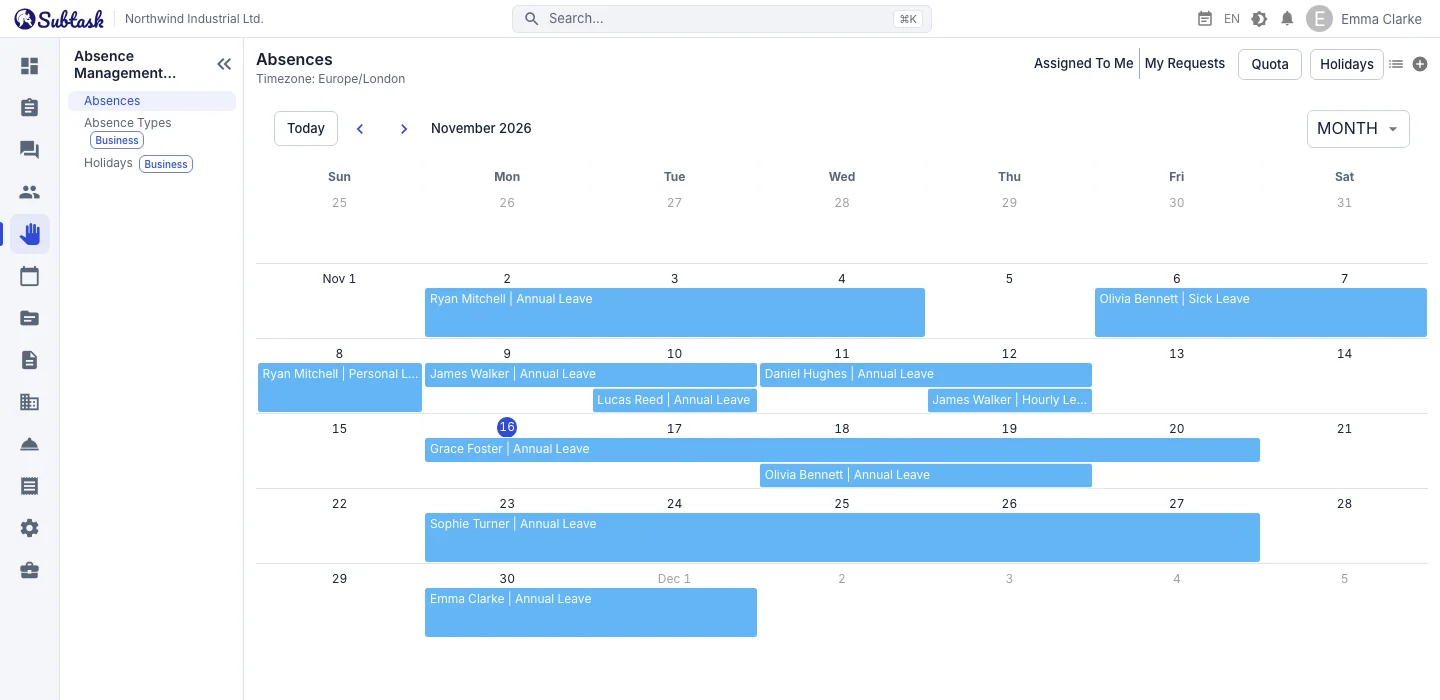
View leave in a table or calendar. The calendar has day, week, and month views; hovering over a leave entry shows the person, type, dates, and status in a tooltip. Select a date range in the calendar to open a leave form with those dates filled in. On small screens, the calendar opens in day view, with balances and holidays moved to the menu.
Use the “My requests” and “Assigned to me” filters to separate your own leave from requests awaiting your approval.
See your leave in Google Calendar and Outlook
When you enable your personal calendar subscription, your pending and approved leave and your company’s holidays appear in Google Calendar, Outlook, or any calendar app that supports webcal. Leave notes are not shared through the subscription. See the calendar page for details.
Leave management alongside the rest of HR
Leave records sit in the employee profile alongside personnel information, assigned equipment, and tasks. When you add a new leave type or holiday, you can let the team know with an announcement.
Frequently asked questions
Can I track leave in hours?
Who approves leave?
What happens if two leave records cover the same dates?
Is the leave module paid?
Do I need to enter public holidays again every year?
Bring your team together in one place
Get started with Subtask for free, invite your team and create your first task in minutes. The price does not change with your user count.
Create a free account