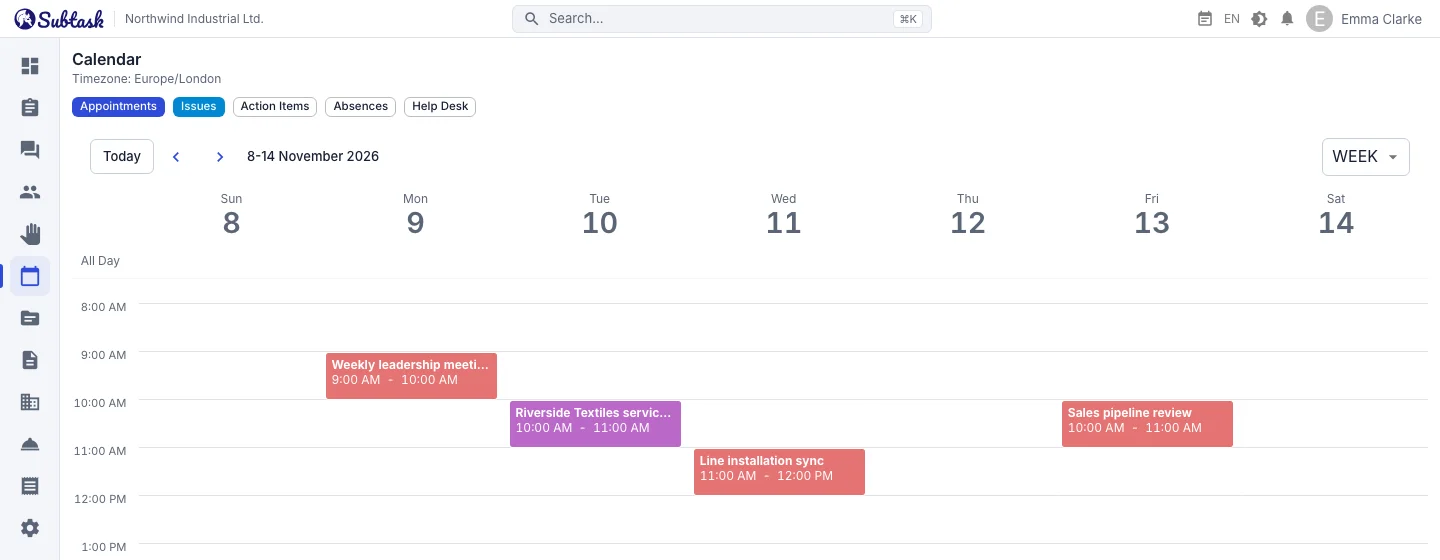
- Calendar layers Meetings, task and action item deadlines, leave, and help desk requests.
- Room booking Select a meeting room; conflicting bookings cannot be saved.
- Participant notifications People added to a meeting receive a notification.
- Calendar subscription One-way sync with Google Calendar, Outlook, and webcal.
Schedule meetings and add participants
When creating a meeting in the calendar, enter a title and start and end times; optionally select a meeting room and multiple participants. Newly added participants receive an in-app notification, and open calendar screens update.
Switch between day, week, and month views, move between dates, and return to today with one click. Drag a meeting to another time, or resize it by dragging its edge. On small screens, the calendar opens in day view.
Layers in one calendar
You can toggle these layers on and off in the main calendar:
- Meetings
- Task deadlines: due dates for tasks in issue tracking
- Action item deadlines: due dates for decisions made in meetings
- Leave awaiting your approval: from leave management
- Help desk requests: from the help desk
Records from other modules are displayed only: their tooltips show the relevant person, date, and status, and clicking takes you to the record’s own page. This lets you see that week’s deadlines while planning a meeting.
Meeting room booking system
Define your office’s meeting rooms with a name and description. Each room has its own calendar, showing only that room’s bookings. Opening a meeting form from this calendar preselects the room. You can also select an active room when creating a meeting from the main calendar.
Conflict checks: if you try to save a meeting that overlaps with another booking for the same room, it is not saved, and the titles and times of conflicting meetings are shown. No more disagreements over who booked the room.
Deactivate a room during renovations so it cannot be selected for new bookings. Bookings are included in personal calendar subscriptions with the room name.
From meetings to agendas and action items
When you open a meeting in the calendar, you can create a linked agenda or open previously linked agendas. Record discussion topics in the agenda and turn decisions into action items with owners and due dates. Action item deadlines also appear in the calendar. Learn more about meeting management.
Subscribe in Google Calendar, Outlook, and Apple Calendar
Create your personal subscription link in the Calendar subscription section of your profile. You can add it to Google Calendar, Outlook, and calendar apps that support webcal, such as Apple Calendar. The subscription includes:
- Meetings you created or are attending, including room names
- Your pending and approved leave (leave notes are not shared)
- Your company’s active holidays
- Optionally, deadlines for incomplete tasks assigned to you
The subscription is one-way: changes in Subtask flow to the external calendar, but changes in the external calendar are not written back to Subtask. It covers the past 90 days and the next 400 days. If someone gains access to your link, you can regenerate it with one click or disable the subscription. Your profile also shows when the link was last used.
Frequently asked questions
Does the Subtask calendar sync with Google Calendar?
Can the same meeting room be double-booked?
Can I define a meeting room’s capacity or equipment?
Is the calendar free?
Can I create recurring meetings?
Bring your team together in one place
Get started with Subtask for free, invite your team and create your first task in minutes. The price does not change with your user count.
Create a free account