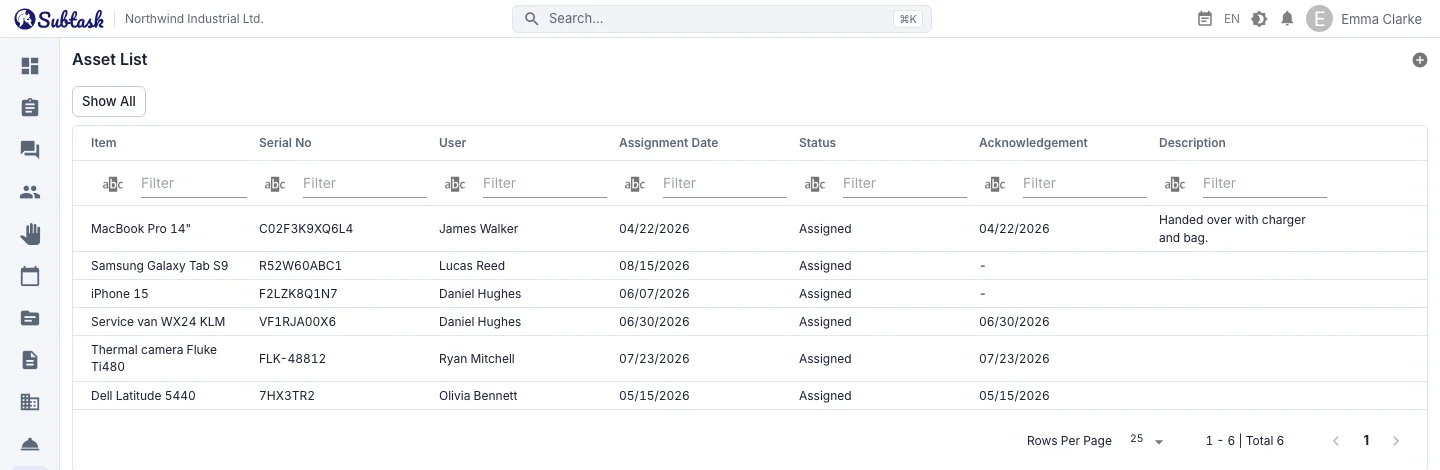
- Serial number Item name, serial number, assignment date and description.
- Employee confirmation Employees confirm receipt in the app.
- Equipment handover form Includes signature fields; print it or save it as a PDF.
- Lifecycle Assigned, Returned, Lost and Scrapped statuses.
Record an equipment assignment
In the assignment form, enter the employee, item name, serial number, assignment date and time, and a description. Serial numbers and descriptions are optional, but recording a serial number for valuable items such as laptops, phones, tablets and vehicles helps avoid confusion when they are returned.
When you create an assignment for another employee, they receive a notification with a link to its details.
In-app receipt confirmation by the employee
The assigned employee can confirm an open, unconfirmed assignment in the app by selecting 'I have received this item'. The confirmation time appears in both the details and the list. A dated confirmation record replaces disputes about whether an item was ever handed over. Only the assigned employee can provide this confirmation.
Printable equipment handover form
Each assignment has a ready-to-use form page. It includes the company name, employee, item, serial number, assignment, return and confirmation dates, status and description, plus signature fields for the person handing over and the recipient. Print the form from your browser or save it as a PDF. When a handwritten signature is required, have the printed form signed and keep it in your records.
Assigned, Returned, Lost, Scrapped
| Status | Meaning |
|---|---|
| Assigned | The employee has the item |
| Returned | The item has been collected; the return date is filled in automatically |
| Lost | The item is lost; the record is closed |
| Scrapped | The item is out of service; the record is closed |
If you change a closed record back to Assigned, the return date is cleared. When the Activity History service is enabled, every change appears in the history tab of the assignment details.
Check outstanding equipment when employees leave
Select 'open assignments only' in the asset list to see items still held by employees; you can sort and filter the list. An employee's assigned items also appear on their employee profile.
An employee record cannot be deleted while it has open equipment assignments. First, collect the items or close the records as lost or scrapped, so equipment is accounted for during offboarding.
What can you assign?
- Computers, monitors, phones, tablets, headsets
- Company vehicles, vehicle keys, fuel cards
- Business cards, access cards, office keys
- Workwear, personal protective equipment (PPE), hand tools
- Measuring instruments and service equipment
Technical service teams record assignments for the equipment they take into the field and track customer faults in the help desk.
Who can see what?
Creating, editing, deleting and changing the status of assignments requires one permission; viewing all assignments requires a separate permission. You can grant these to HR or office administration staff. Other employees see only their own assigned items.
Frequently asked questions
Can I get an equipment handover form as a PDF?
How does an employee confirm receipt?
Is asset tracking paid?
Can I keep an inventory of items that are not assigned to anyone?
Can I import my equipment assignment spreadsheet?
Bring your team together in one place
Get started with Subtask for free, invite your team and create your first task in minutes. The price does not change with your user count.
Create a free account